 Flows Made Easy
Pick a theme & tweak styles on the left, or type your own colours.
Check the Live Preview below to see exactly how your table will look.
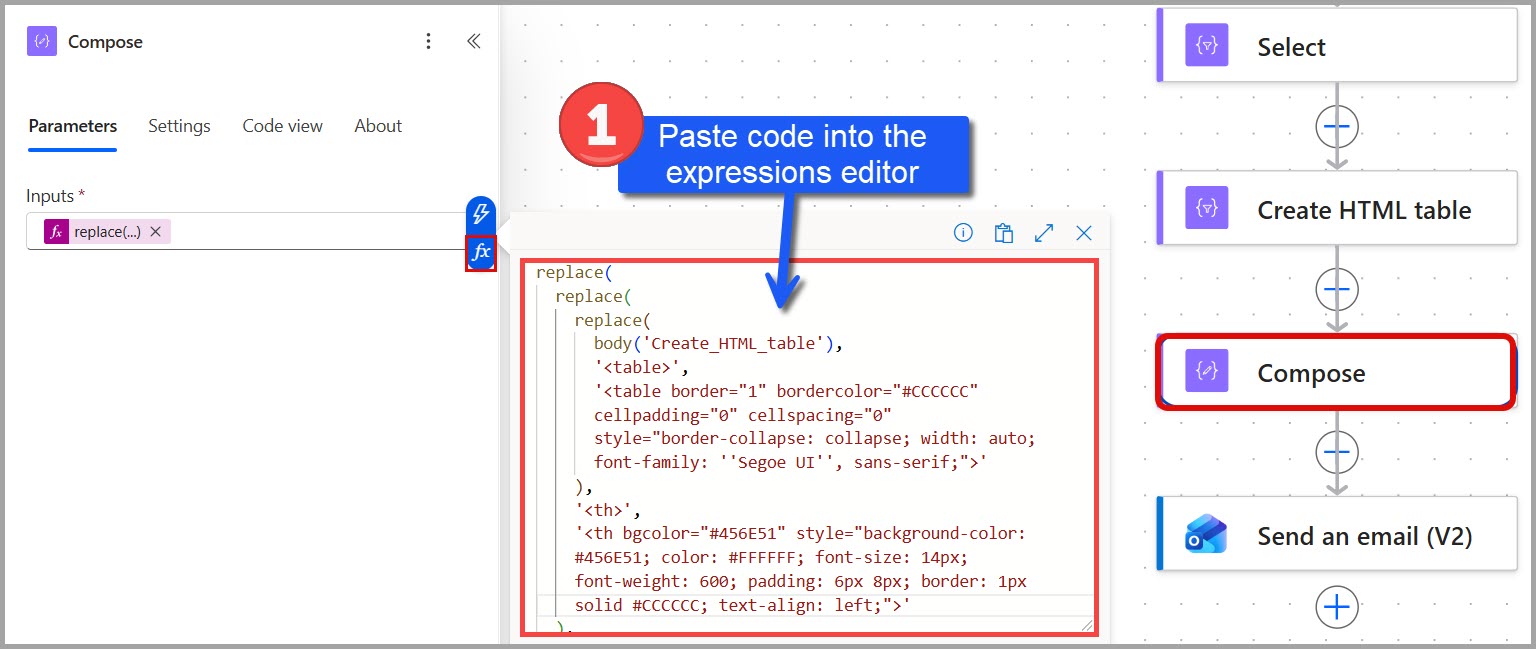
Copy the expression and paste it into a Compose action's fx field in Power Automate.
Themes Customised
Select a pre-built colour palette to get started:
Customise Styles
Power Automate Action
Create HTML table action name
Leave as Create_HTML_table unless you've renamed the "Create HTML table" action in Power Automate. If renamed, enter the new action name here. Spaces are automatically converted to underscores ( _ ).
Live Table Preview
Paste the HTML output of your Power Automate Create HTML table action. A header and 10–20 representative rows is plenty; your formula styles every row in the flow.
Processed in your browser only. Nothing you paste is uploaded or stored.
Where do I find this HTML?
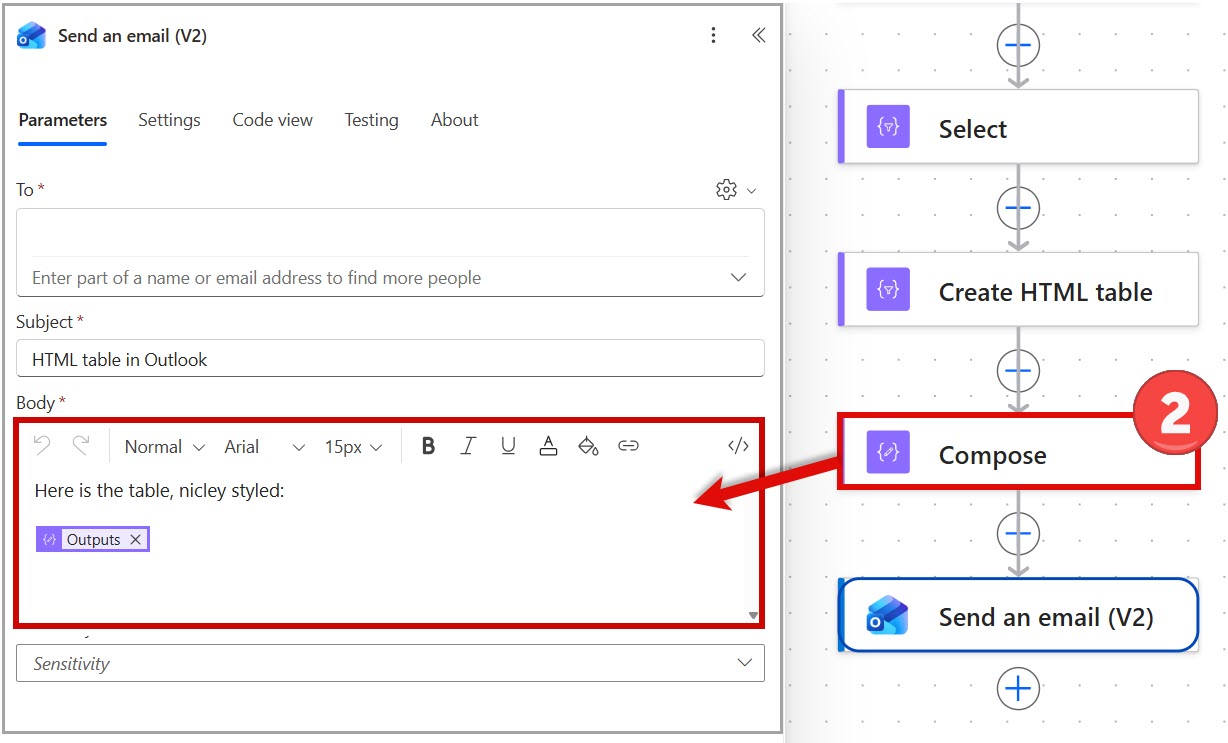
Run your flow, open the run, expand the Create HTML table step and copy the Body from its outputs. Paste only that output, before any Compose or styling step.
Highlight Table Values
Case-sensitive. Must match the entire cell value exactly. Does not match partial text within a cell.
replace(replace(replace(body('Create_HTML_table'), '<table', '<table style="border-collapse:collapse;width:100%;font-family:sans-serif;font-size:12px;"'), '<th', '<th style="background-color:#1C6EA4;color:#FFFFFF;padding:6px 8px;border:1px solid #CCCCCC;text-align:left;"'), '<td', '<td style="padding:6px 8px;border:1px solid #CCCCCC;color:#333333;text-align:left;"')